Partners: pass a case to your lender, agent or title company
Share a list of cases with someone you work with through a private link. You both see the same case cards, keep one set of notes on each case, and always know whose turn it is.
Start a partner list
Go to Team & Partners, open Partners and click Share cases, or open a lead and use Share with a partner. Add your partner's name and email and say what they do: real estate agent, lender, title / closing, attorney, investor / buyer, co-investor, wholesaler, contractor, property manager, appraiser, inspector, insurance, business partner / family, or other.
Pick the cases
Pick cases from your leads, or use one of your saved filters and tick Keep adding new cases so new cases that match join the list on their own. You can turn on Show my notes for a list; phone numbers and emails in your notes are hidden from the partner either way.
Send the link
Choose Make list and email it and we email your partner the link, or Make list and get link to send it yourself. They don't need an account. They open the link on a phone or a computer and give their name.
What your partner sees
A card for each case: the owner, the property, the case type, the court stage and what it means, and the next court date. Never phone numbers, emails or case numbers, and nothing else in your account.
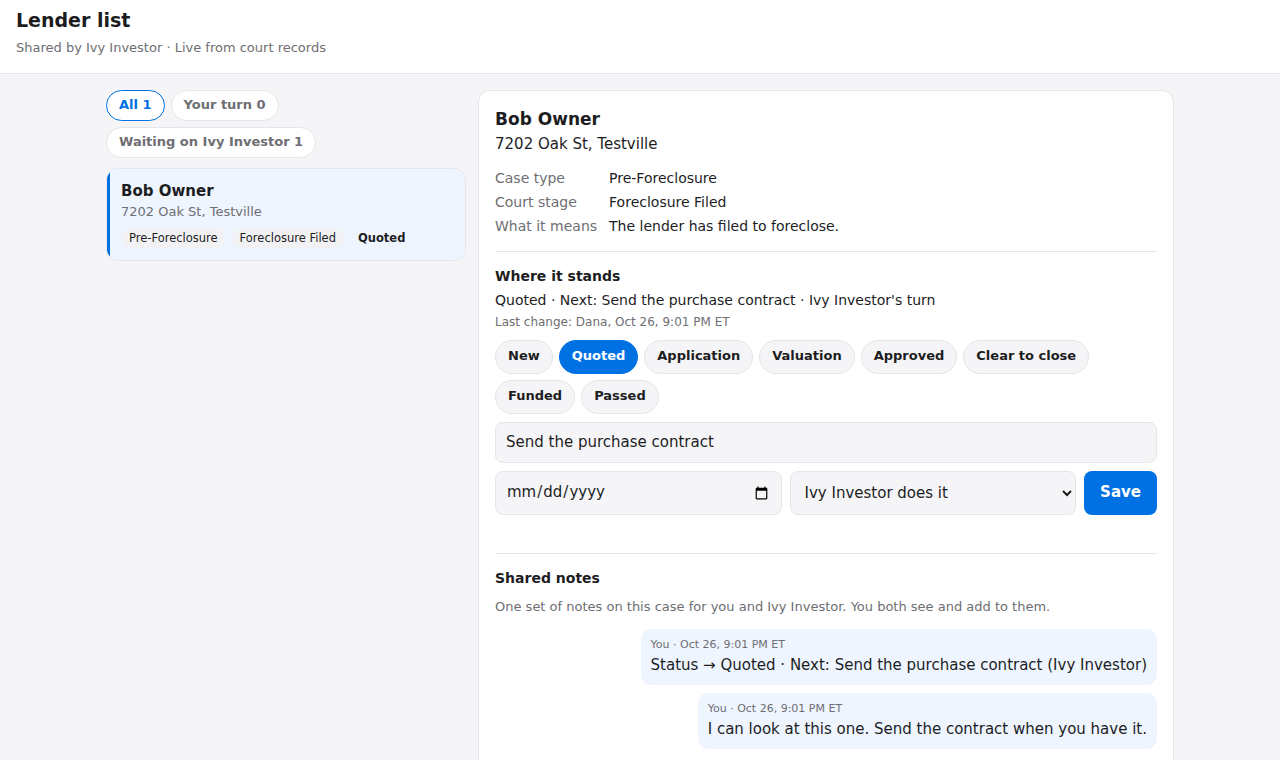
Your partner's view: where it stands, the next step, whose turn, and shared notes. Demo data. Work each case together
Each case has one set of shared notes you both post to, and a Where it stands box: a status, the next step, a due date and whose turn it is. Either of you can change it, and every change is written into the notes so there's a record of who did what. The statuses fit the partner, for example:
- A lender: New, Quoted, Application, Valuation, Approved, Clear to close, Funded, Passed
- A real estate agent: New, Contacted, Appointment set, Offer made, Under contract, Closed, Passed
- Title / closing: New, Ordered, Search back, Commitment, Clear to close, Closed, Passed
- An attorney: New, Contacted, Engaged, Filed / in progress, Resolved, Passed
Every list can also mark a case Passed.
Ask for exactly what you need
Each kind of partner has its own request form, and they answer in a few taps:
- Funding request (lender)
- Value + listing (agent)
- Open title (title)
- Deal offer (buyer / investor, co-investor, wholesaler)
- Case help (attorney)
- Question (any partner)
DRAFT NOTE (remove at go-live): request forms are a pilot today. The server only allows them on lists owned by internal Keystone accounts (partner_share.ask_allowed), so customers don't see them yet. Drop this step or keep it, depending on whether requests open to customers at go-live.Stay in control
Add or remove cases any time, make a new link (the old one stops working), or click Stop sharing. A link nobody opens for 90 days stops working on its own.
Limits
There are limits on how many cases a partner can hold at once, how many lists you can keep, and how many cases you can add in a month; the app tells you when you reach one. Some cases can't be shared for privacy reasons, such as family-court matters like custody or guardianship, and the app tells you when a case can't be shared.