Calling companies: have your callers work your leads
Bring in your own calling team or virtual assistants. They call the owners on the leads you send them, log every call, and tell you who wants to talk. You see every call on the lead.
Connect your calling company
Open the Calling company screen, type the company's name and email, and click Connect. You get a private invite link. We don't email it, so send it to them yourself. It works only for that email and stops working after 14 days. You need an active county to connect one.
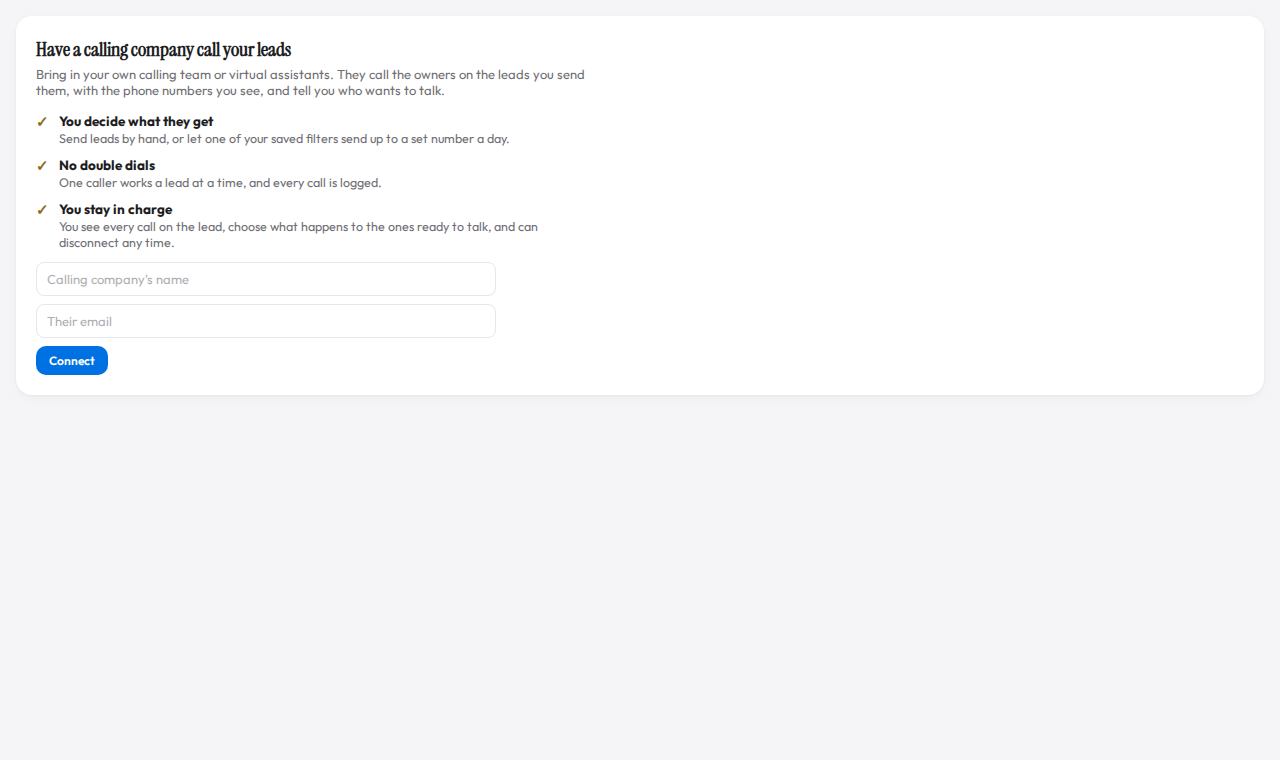
Connect a calling company with its name and email. Demo data. They accept and add their callers
The company opens your link and signs in, or makes a login, with that email, then clicks Accept. Under Your callers they add each caller by name and email and send each one their own invite link. A caller who works for several of the company's clients sees them all and switches between them at the top of the screen.
Send them leads
Send leads: pick leads by hand (up to 200 at once) and choose anyone at the company or one caller.
Keep their list filled: pick one of your saved filters and how many a day, at most. Each day, up to that many matching leads go onto their list, soonest sale date first, then the highest score. The rule uses a copy of the filter, so changing the saved filter later doesn't change what they get. You keep every lead.
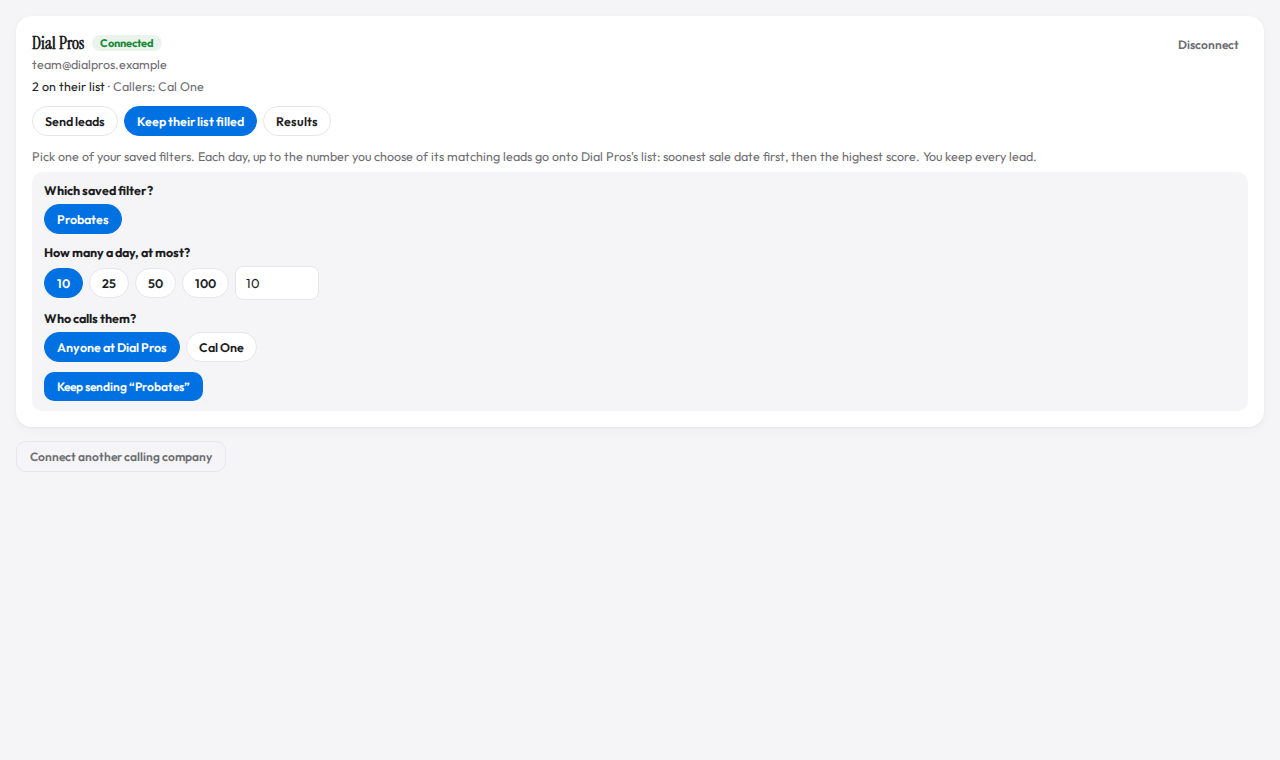
A saved filter keeps their list filled, up to a daily limit. Demo data. Callers call and log what happened
A caller opens a lead and it's theirs for the next 20 minutes, so nobody else calls it at the same time. They see the phone numbers on your lead, with any number on the Do Not Call list marked. After each call they tap what happened: Reached, No answer, Left voicemail, Wrong number, Disconnected, Not interested, Call back, Appointment set and Asked not to be called, and can add a note. Not interested and Asked not to be called take the lead off their list.
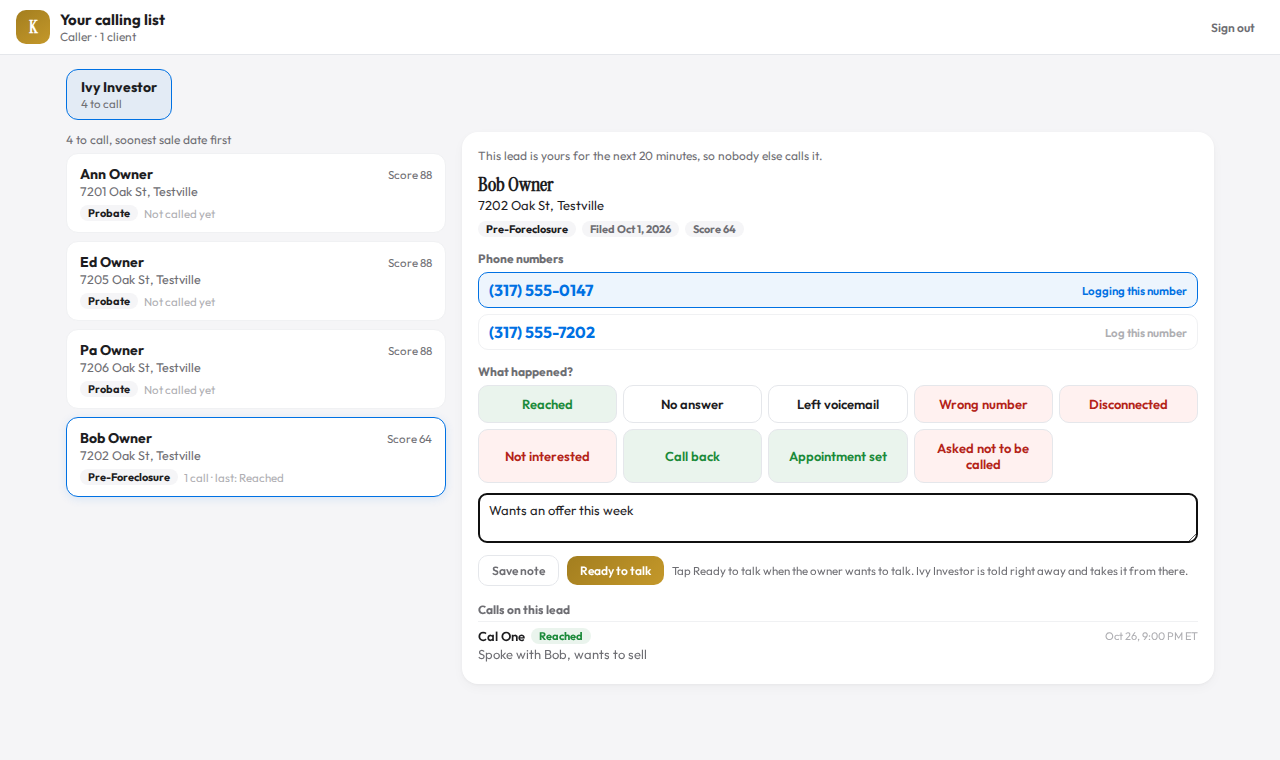
The caller's screen: phone numbers, what happened, and Ready to talk. Demo data. "Ready to talk" comes to you
When an owner wants to talk, the caller taps Ready to talk and you're told right away. The lead waits for you in your Ready to talk list, where you can open it, Pass to a partner, or Send back to callers.
See every call, and the results
On the lead itself, the Calling company box shows every call and note with the caller's name and the time. Results shows calls made, owners reached, appointments, ready to talk and leads called, by caller and by lead type.
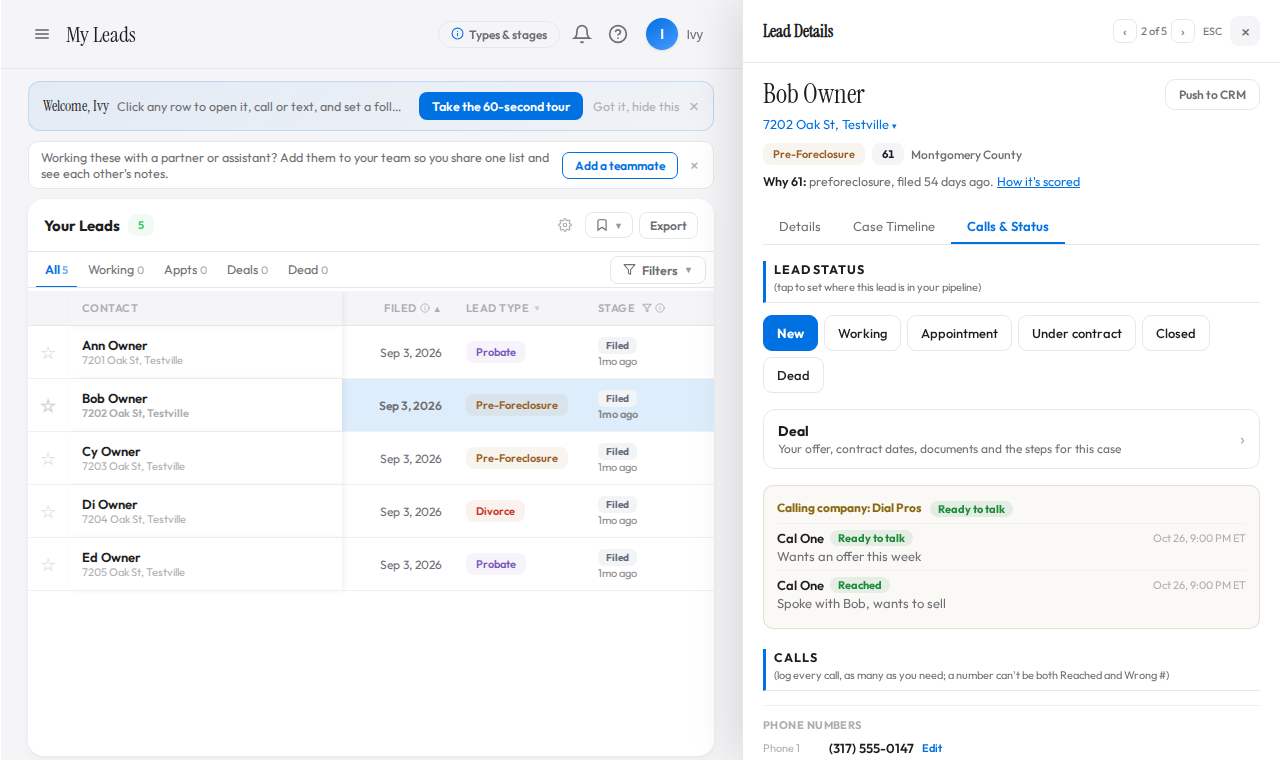
Every call shows on your lead, with the caller's name. Demo data. 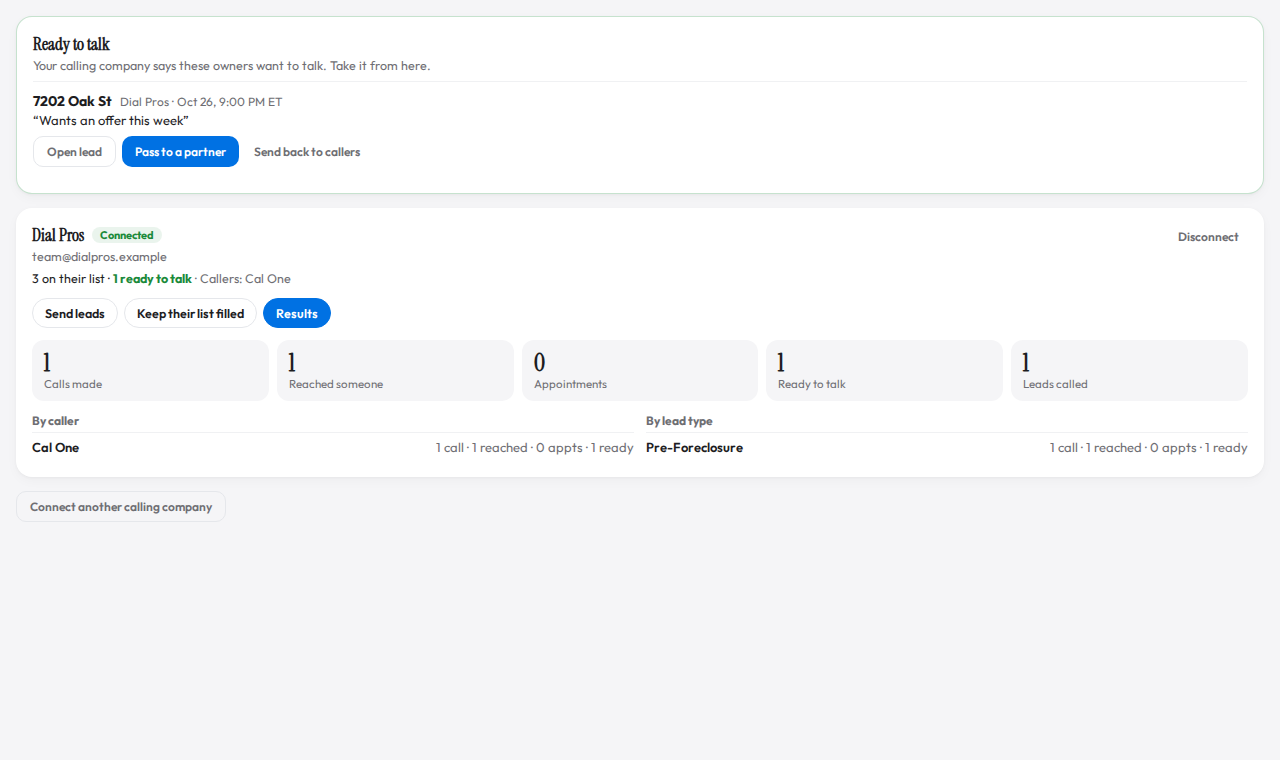
Ready to talk leads wait for you; results by caller and lead type. Demo data. Disconnect any time
Disconnect ends it in one step: their list closes right away and nobody there can open your leads. The calls they logged stay in your results.
What your calling company can and can't see
They see only the leads you send them, and only while you can still see them yourself. They don't see your other leads, billing, settings, CRM connections, saved filters or partner lists, and they can't spend your credits. Their calls and notes are kept apart from your own notes and are never shown to your partners. Passing a case to a partner is always your call.
Calling laws
Your callers see the phone numbers on your leads. You and your calling company are responsible for following the laws that apply to calling, including Do Not Call and TCPA rules.